Broker
Set up Fubon Securities' SDK, certificate and API key, then pick the account orders go to.
Besides the paper account, Solyx trades a Fubon Securities account through Fubon's own SDK, fubon-neo. The SDK never ships with Solyx: you download it from Fubon, and Solyx loads it from the folder you choose and runs it in a process of its own.
Buys need a supported settlement bank
Fubon reads the balance only of a settlement account at Taipei Fubon Bank or LINE Bank. With another bank, Solyx cannot tell what you can spend, so it refuses buys and only sales go.
At Fubon
Fubon's preparation guide covers these steps in full.
Open a Fubon Securities account, online if you have none.
Sign the API risk statement and pass the connection test. Fubon's signing guide walks through it.
Apply for a certificate and export it. On Fubon's API key page, sign in with your ID number and e-platform password, apply for the web certificate with the one-time code Fubon sends, and export it as a .pfx file. Its password is your ID number unless you change it.
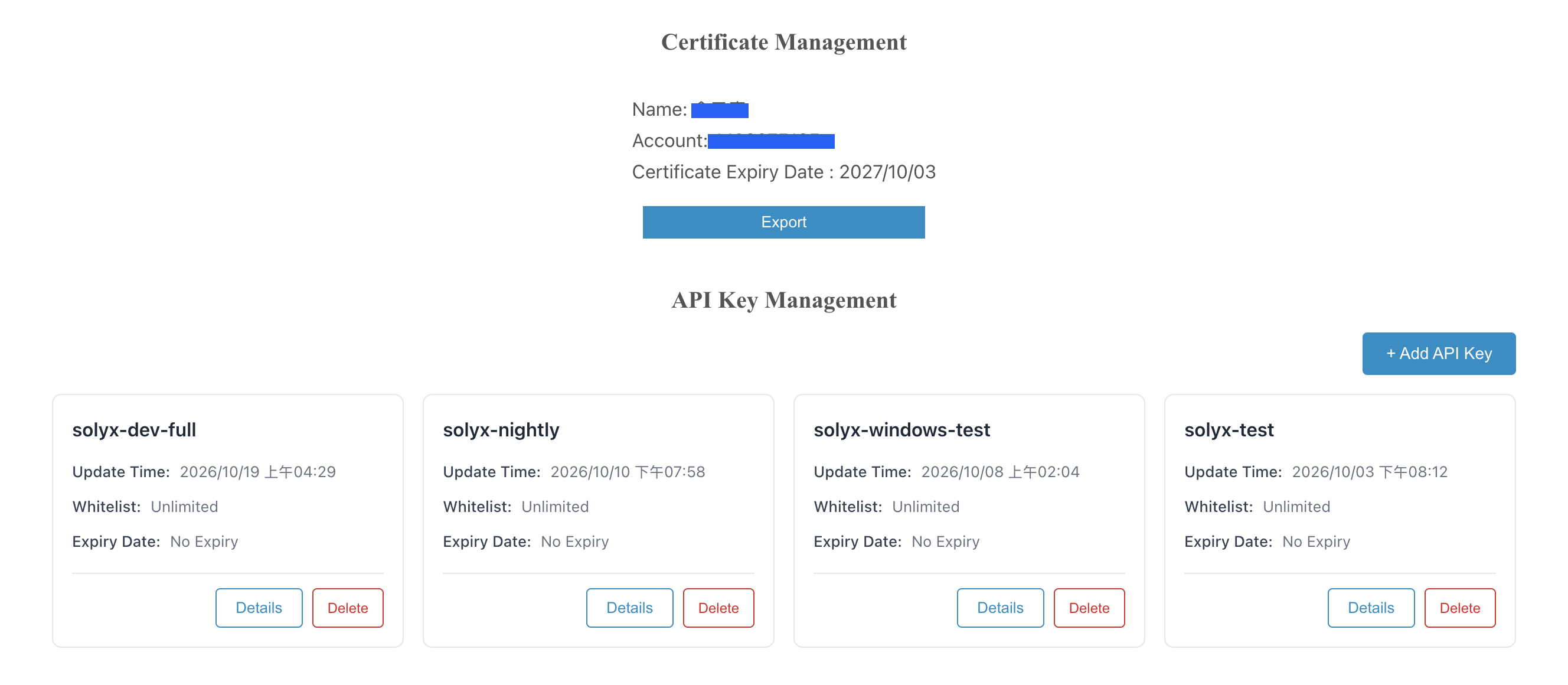
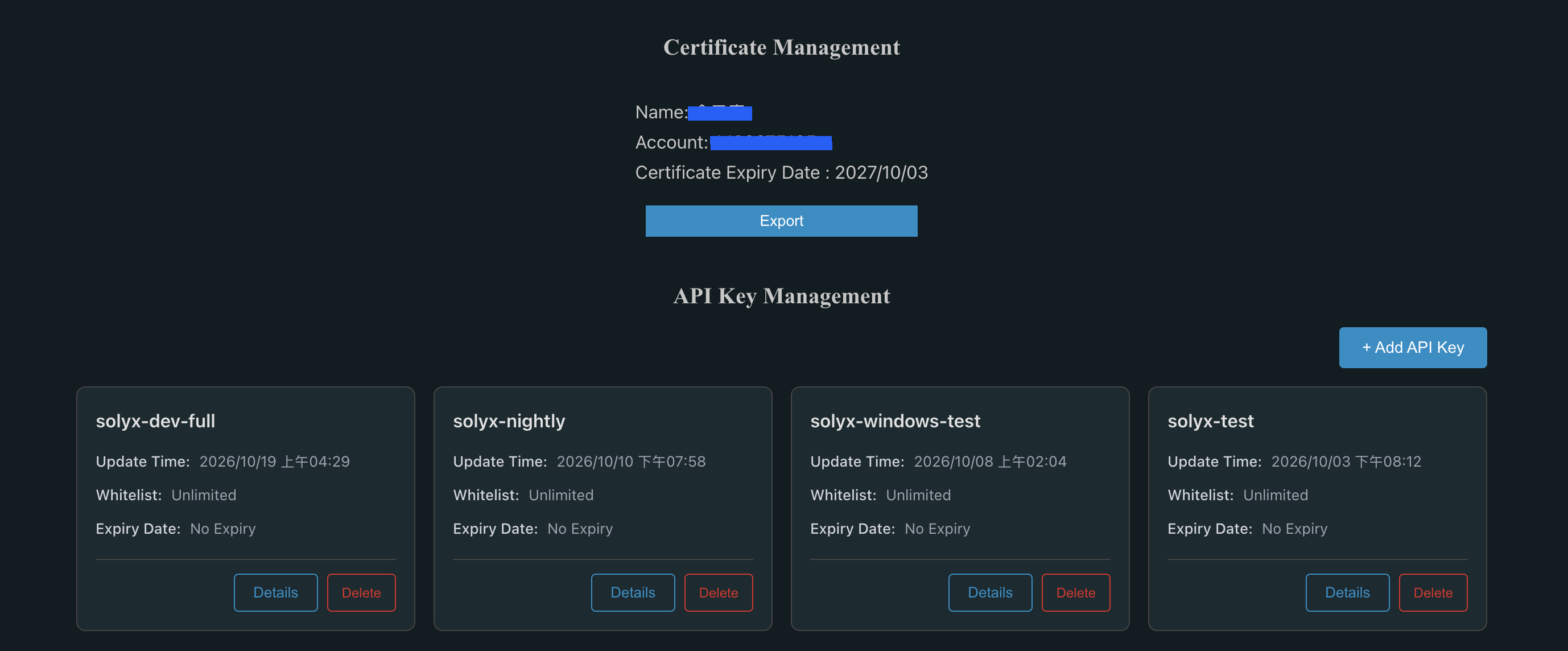
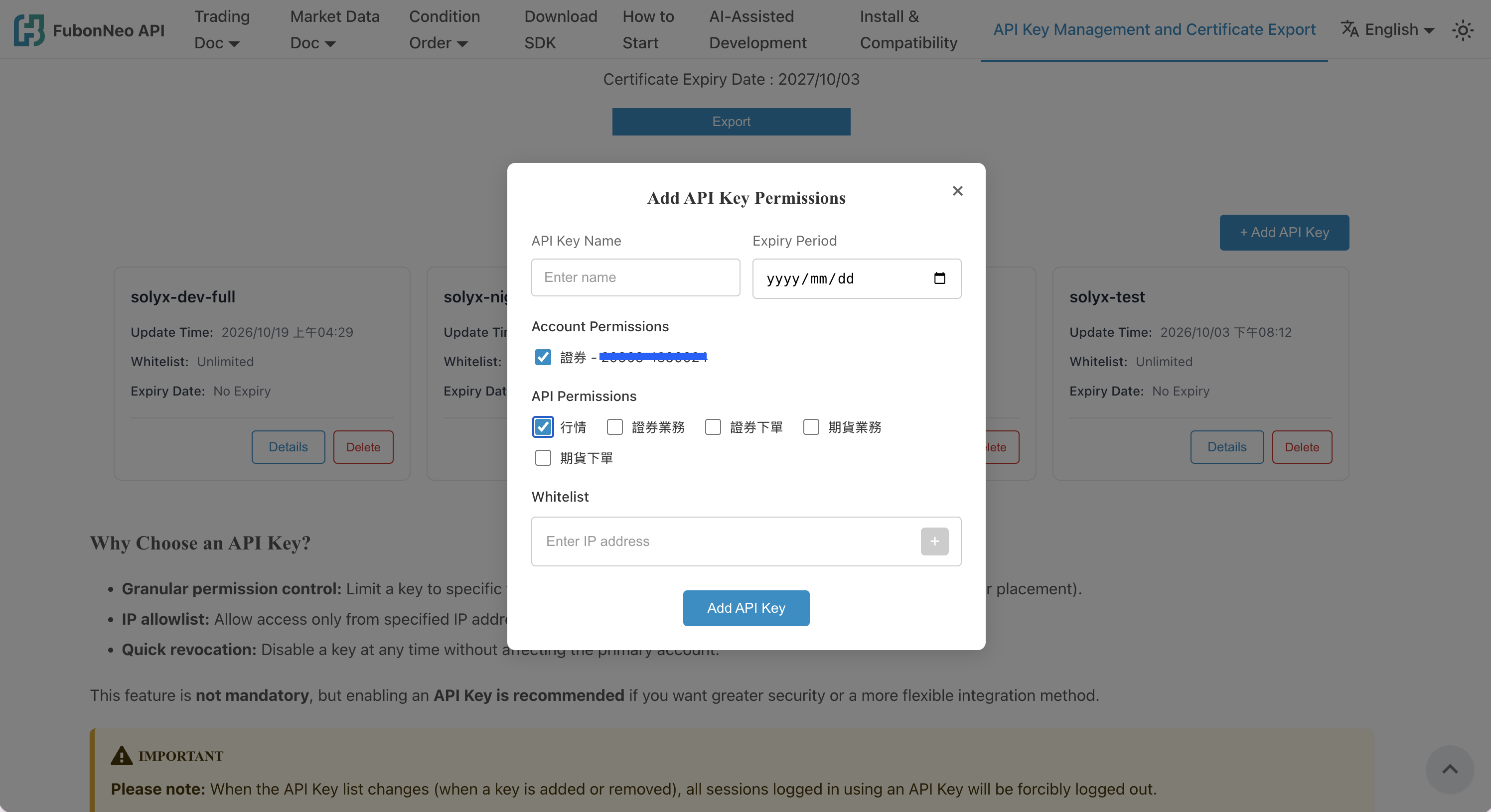
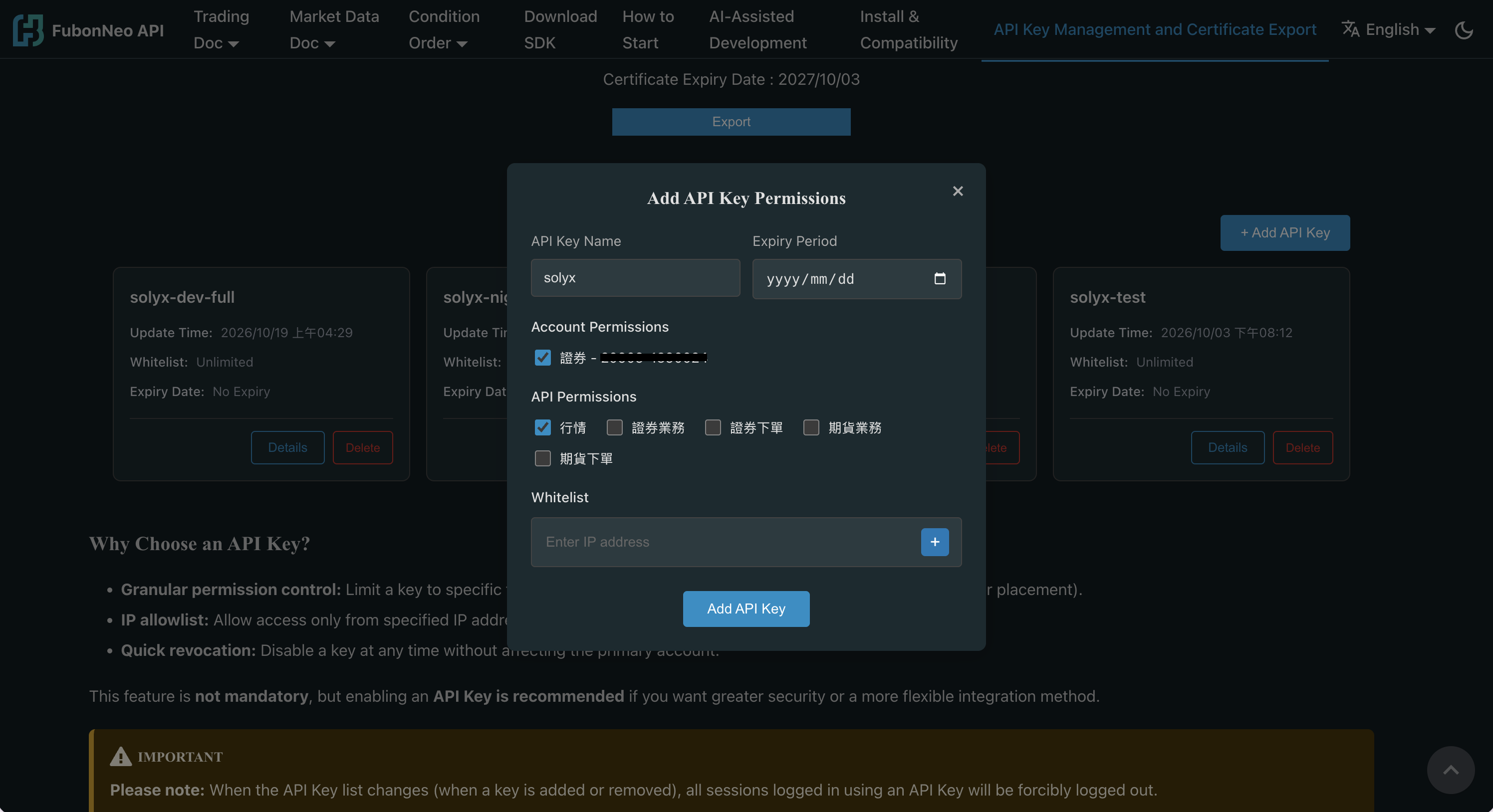
Create an API key on the same page with 新增金鑰. A key limited to market data can't place orders, so give it trading too if you want to trade. Copy its secret: Fubon shows it once.
Download the Node.js SDK from Fubon's SDK page, fubon-neo-<version>.tgz, and extract it.
The extracted folder holds the SDK's package; Solyx accepts either the folder itself or the package folder inside it.
In Solyx
Open Settings → Brokers → Fubon Securities and fill in:
| Row | What goes there |
|---|---|
| SDK folder | The folder you extracted. Solyx shows the version it found. |
| Certificate | The .pfx file you exported. |
| ID number | The ID number your account is under, such as A123456789. |
| API key | The key from Fubon's API key page. |
| Certificate password | Optional; leave it unset if it is your ID number. |
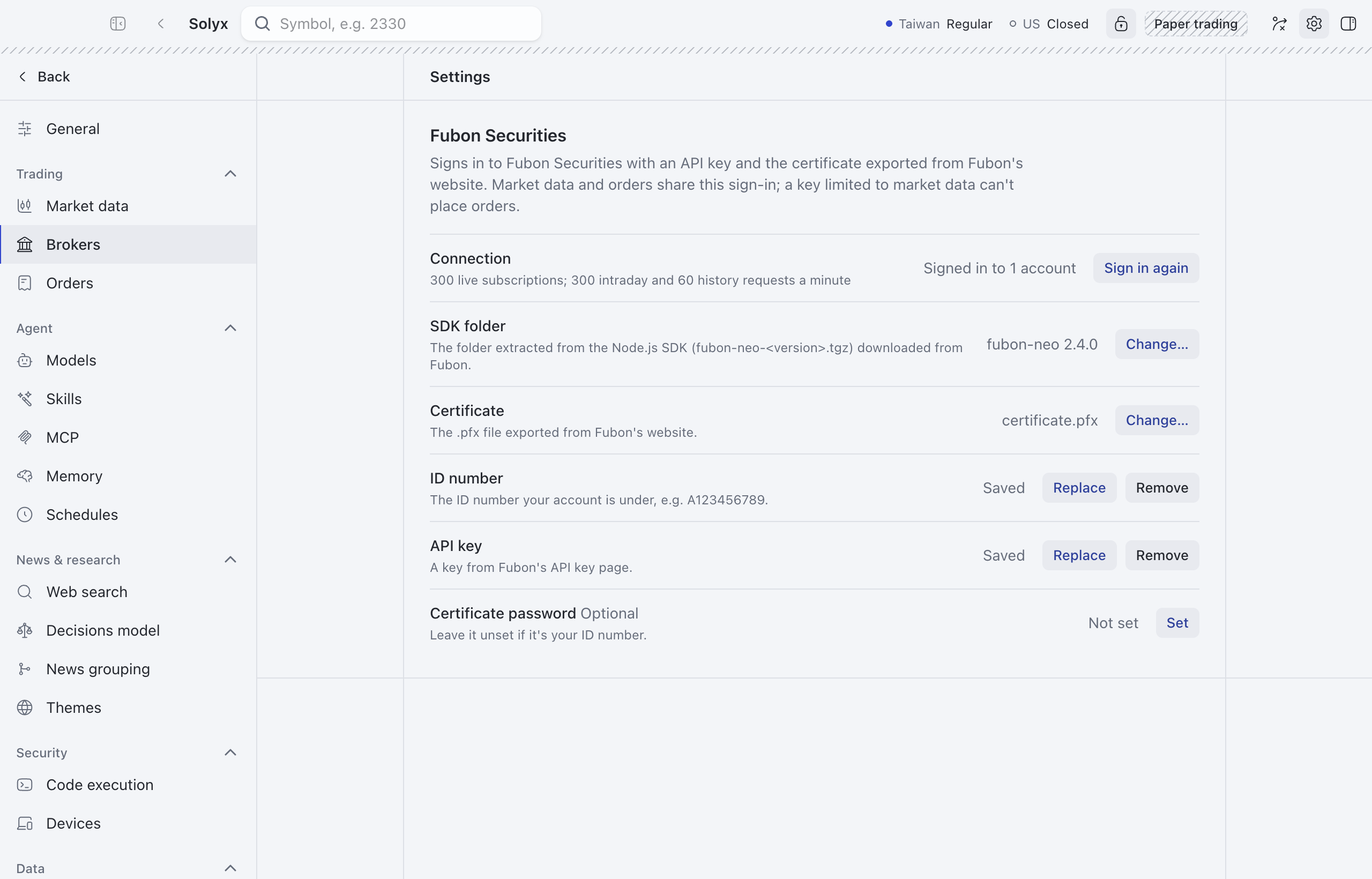
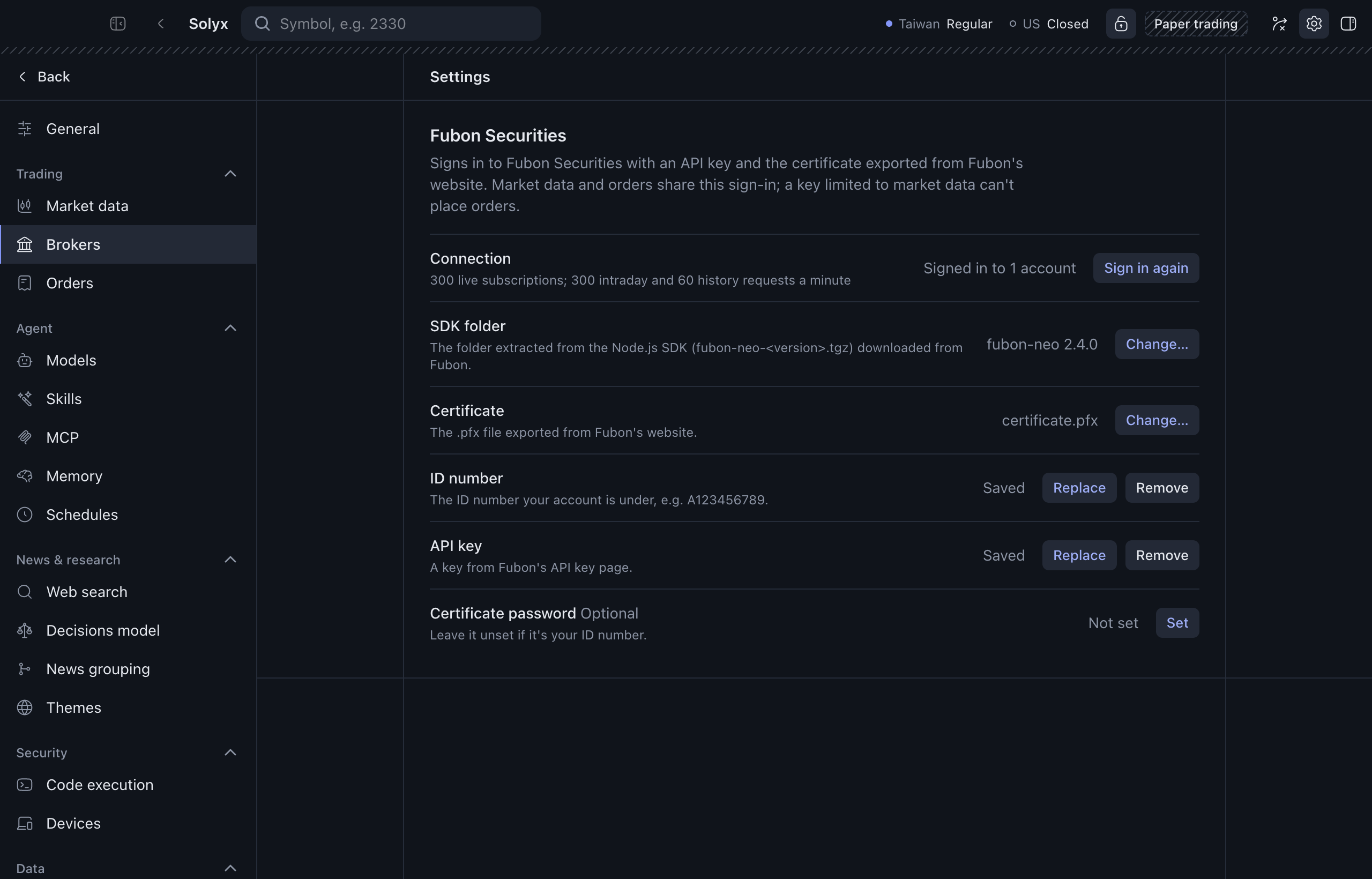
Sign in. Solyx signs in by itself the first time charts or orders need Fubon, or you can press Sign in on the Connection row. It shows how many accounts it signed in to. A sign-in that fails is not tried again until you change a setting.
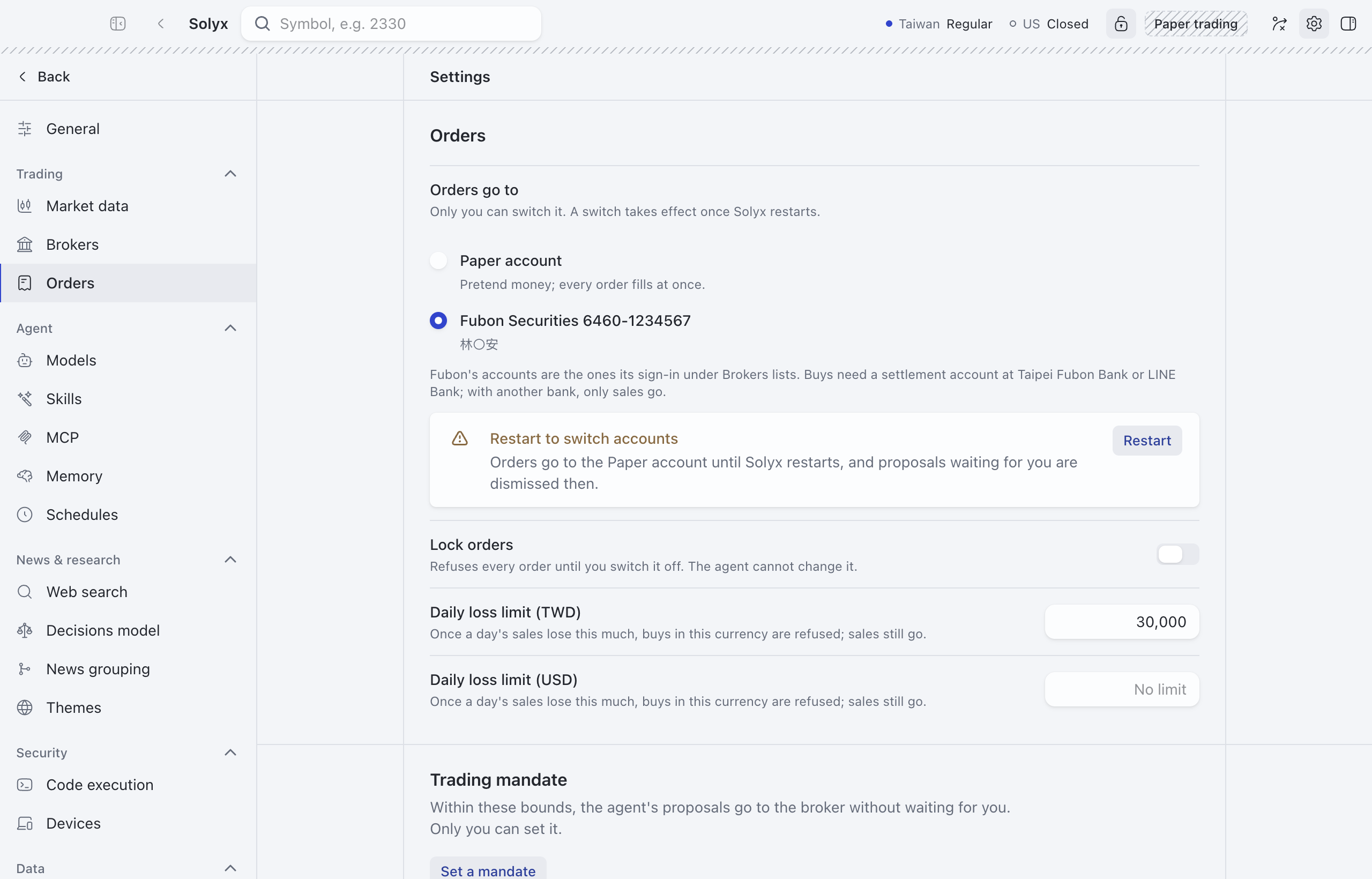
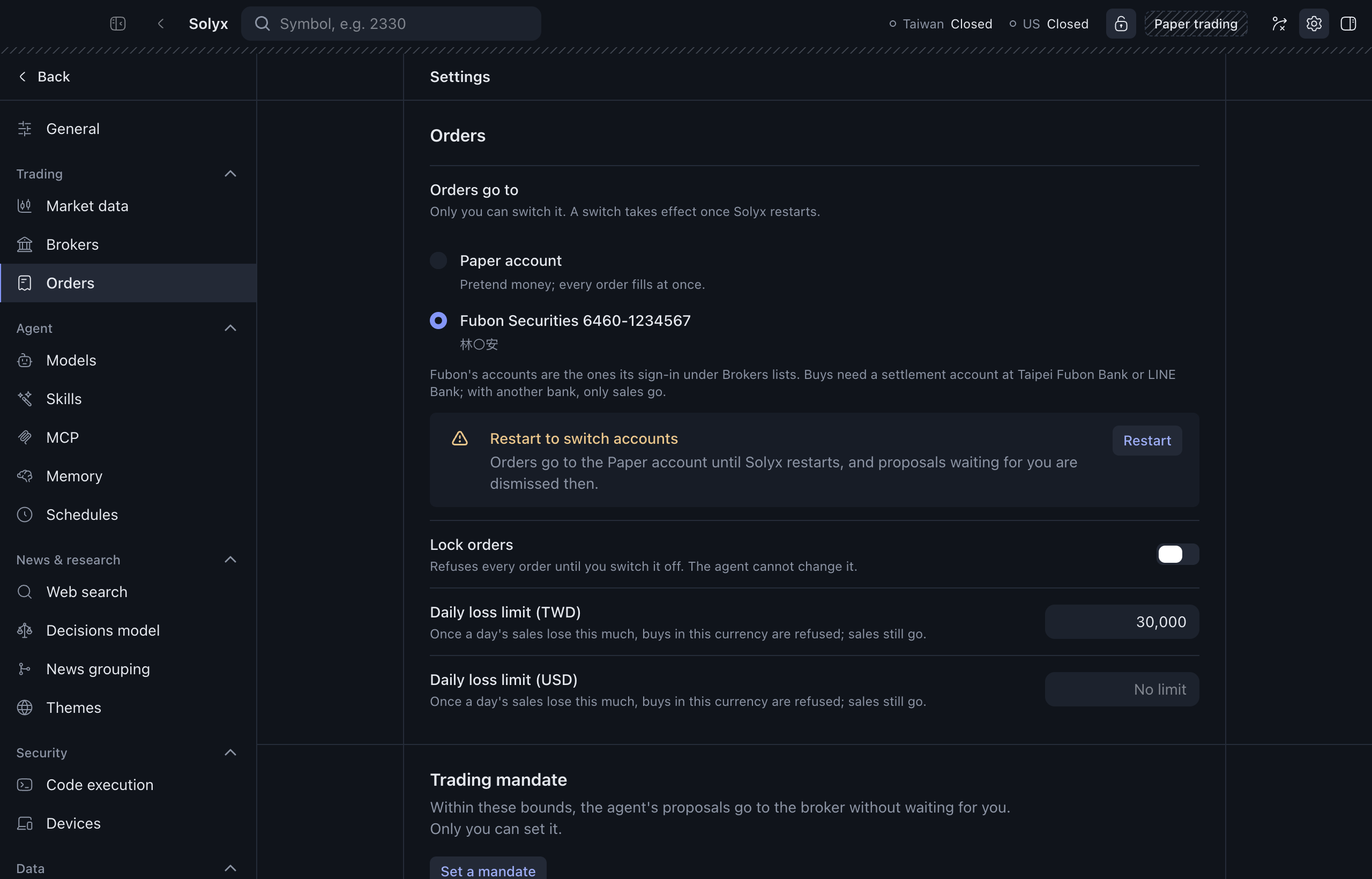
Pick the account under Settings → Orders → Orders go to, then restart Solyx. Proposals still waiting for the paper account are dismissed then.
Solyx is checked against each version Fubon publishes, and Settings → Brokers says when yours is one it hasn't been checked with.
Trading settings
Under Settings → Orders, beside the account:
- Lock orders refuses every order until you switch it off. The agent cannot change it. The lock in the status bar does the same.
- Daily loss limit, one for each currency: once a day's sales lose this much, buys in that currency are refused; sales still go.
- Trading mandate lets proposals within bounds you set go without waiting for you. Trading mandate.