The workspace
The watchlist, the overview, a listing's page and the agent's pane, and how to move between them.
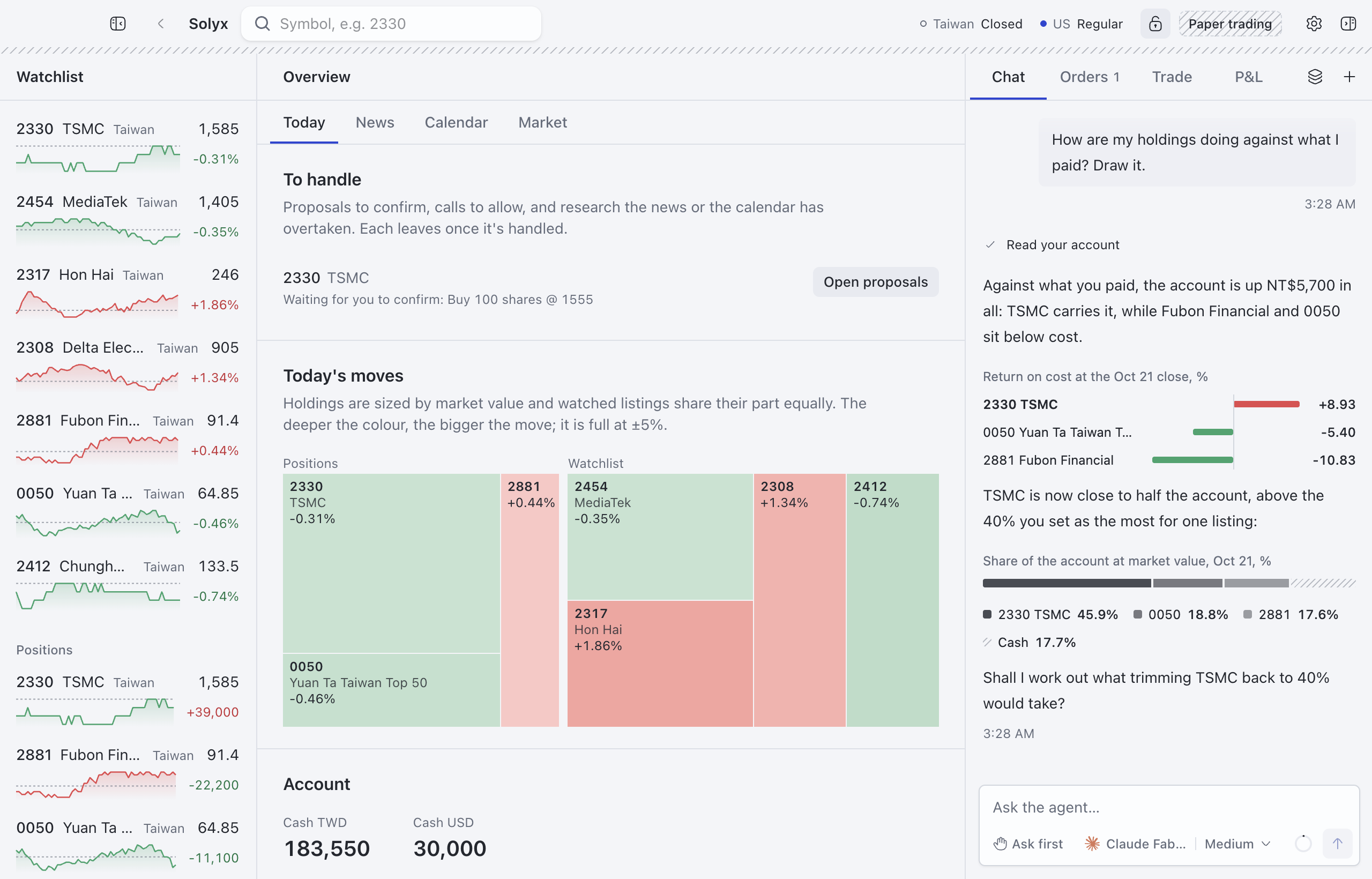
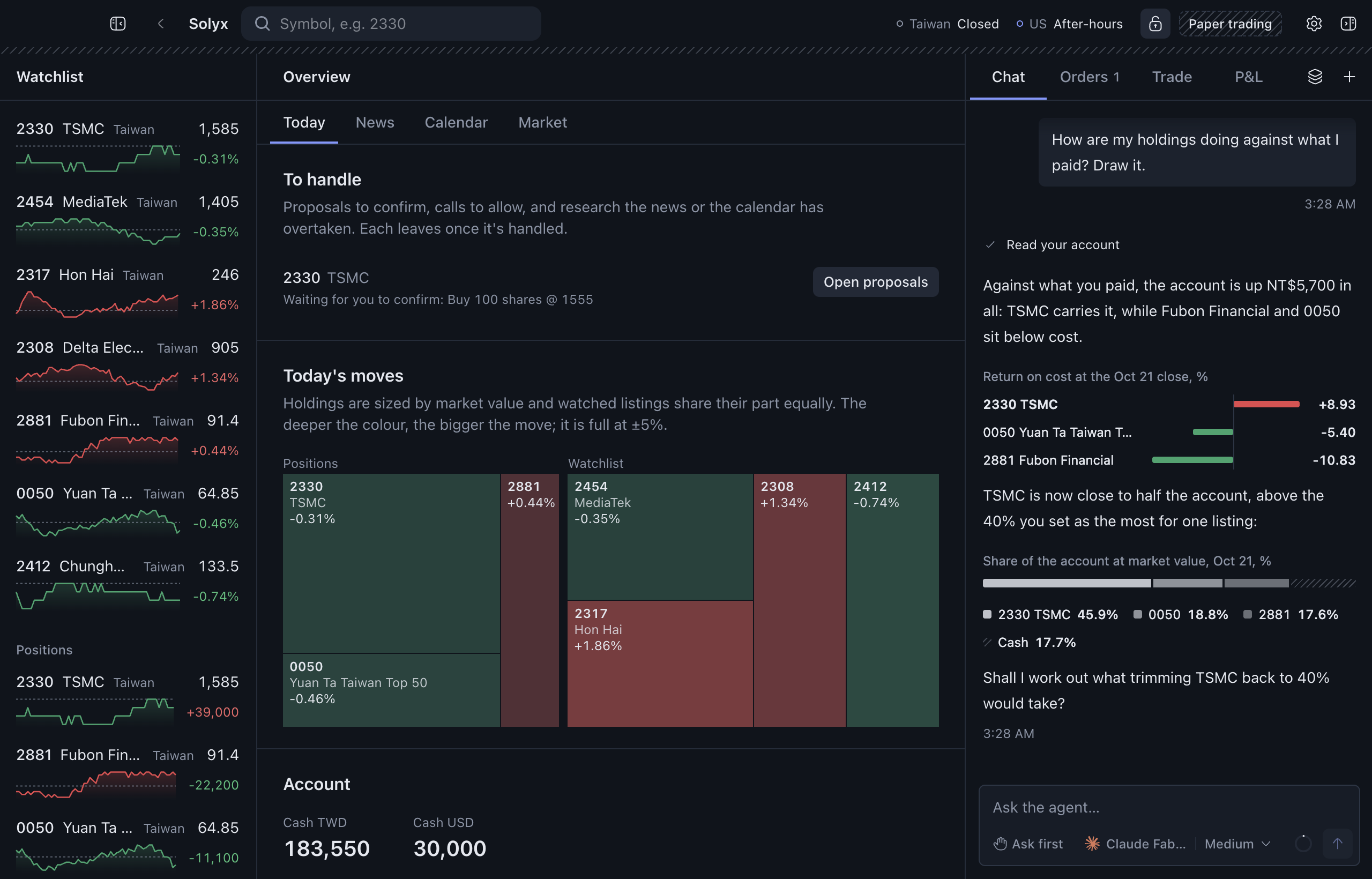
Solyx's window has three columns: your watchlist and positions on the left, the overview or a listing's page in the middle, and the agent's pane on the right.
The top row
Each column's header runs along the top of the window, and you drag the window by any of them. Whichever columns show, the watchlist's toggle and Back stay at the top left and the agent pane's toggle at the top right, beside the window's own buttons.
A strip runs under the headers: hatched in pencil while orders go to the paper account, a solid ink line once they go to your own.
Watchlist and positions
The left column opens with the symbol search, the Overview and Strategies, then lists your Watchlist, then your Positions, in the category the dots at its foot pick: All, Taiwan or US. The category's name heads the lists. Click a dot or swipe sideways with two fingers over the lists to move between categories, and right-click a dot to draw it as an icon instead. Each row shows its name, the session's line, its price and today's change; a position's also shows its gain. Search a symbol, then add it with the star above its chart. Drag a row to reorder it; its ✕ removes it.
Settings sits at its foot, beside the dots. While settings are open, its sections take the column's place; Back at the top left leaves them.
The status bar
A bar runs along the bottom of the window: each market's session on the left, and on the right an update when one is ready, whether you trade on paper or live, and the order lock.
The overview
- To handle: proposals waiting for you to confirm, conversations with a call to allow, and reports whose falsifier the news may have met or whose date has passed. Each leaves once handled.
- Today's moves: a heat map of your positions, sized by market value, and your watchlist.
- The account: cash and what you hold.
- Trade review: your closed round trips, grouped by the report's stance at the first buy, with their win rate, average win and loss, and payoff ratio.
How heat maps and rotation are worked out.
A listing's page
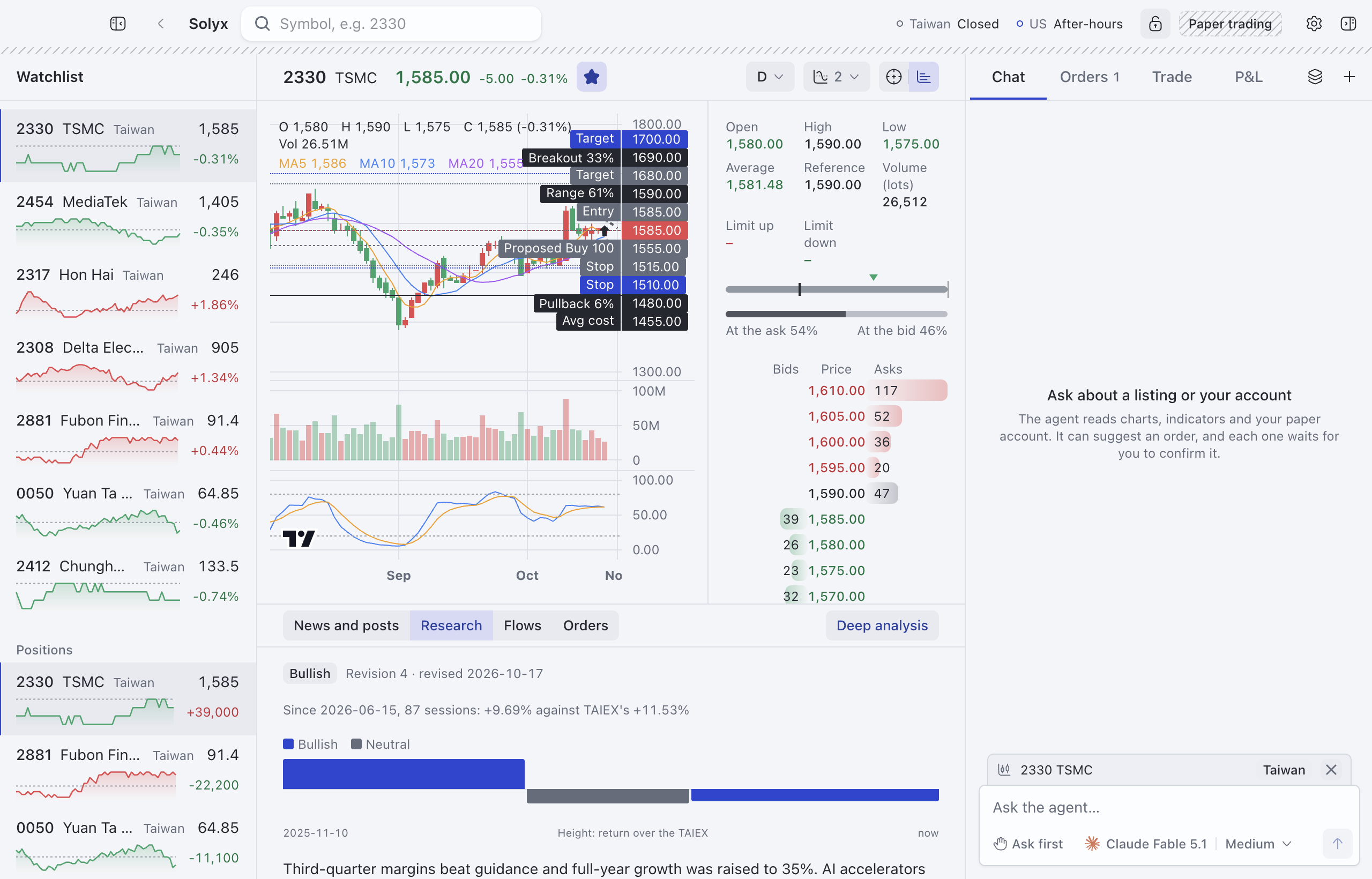
Above the chart sit the quote, the watch star, the interval, Indicators and Chart tools: Pick on chart and Order book. Charts.
Under the chart picks what shows below it:
| View | What |
|---|---|
| News and posts | The listing's stories and the sentiment gauge. News |
| Research | Its report, forecasts, filed figures, rotation and fund data. Research |
| Flows | Investor flows, for Taiwan listings |
| Orders | The listing's working orders and newest fills |
| Backtest | Test a strategy on the listing's history. Backtesting |
The agent's pane
Four tabs: Chat, Orders, Trade and P&L. Orders counts the proposals waiting for you. Trade keeps its draft while you switch tabs. The agent and the order panel.
The menu bar
Solyx stays in the menu bar, or the system tray on Windows, while its window is closed, so scheduled tasks and exits keep running. Its menu lists what waits for you, the proposals to confirm and calls to allow, the scheduled tasks running and the next three, and an update when one is ready. A row only opens the window in the right place: nothing in the menu confirms an order or allows a call. The icon shows how many things wait, and so does the Dock.
Under Settings → General → Background, Keep Solyx in the menu bar can be switched off, and on macOS Leave the Dock while no window is open hides it from the Dock.
Keyboard shortcuts
| Keys | Does |
|---|---|
| ⌘ B / Ctrl B | Show or hide the watchlist |
| ⌘ I / Ctrl I | Show or hide the agent's pane |
| ⌘ K / Ctrl K | Search a symbol |
| ⌘ [ / Alt ← | Go back |
| Enter | Send a message |
| Shift Enter | A new line in a message |
Drag a divider to resize a column, or focus it and use the arrow keys; double-click it to reset. Hold to submit needs a 1.2-second hold, which a screen reader's press stands in for.
Settings
Settings takes the watchlist's place with its sections: General first, then five groups, then Observability and About.
| Group | Sections |
|---|---|
| Trading | Market data, Brokers, Orders |
| Agent | Models, Skills, MCP, Memory, Schedules |
| News & research | Web search, Decisions model, News grouping, Themes |
| Security | Code execution, Devices |
| Data | Storage, Backup |
A group's heading folds it away, and Solyx remembers which you folded; opening a section, here or from a link, unfolds its group. A longer edit opens in a window over the page, such as a scheduled task, a theme, a memory, the trading mandate or an MCP server's tools. A click beside it keeps what you typed; Cancel, the close button or Esc leaves it.
Appearance
Under Settings → General:
- Theme: System, Light or Dark.
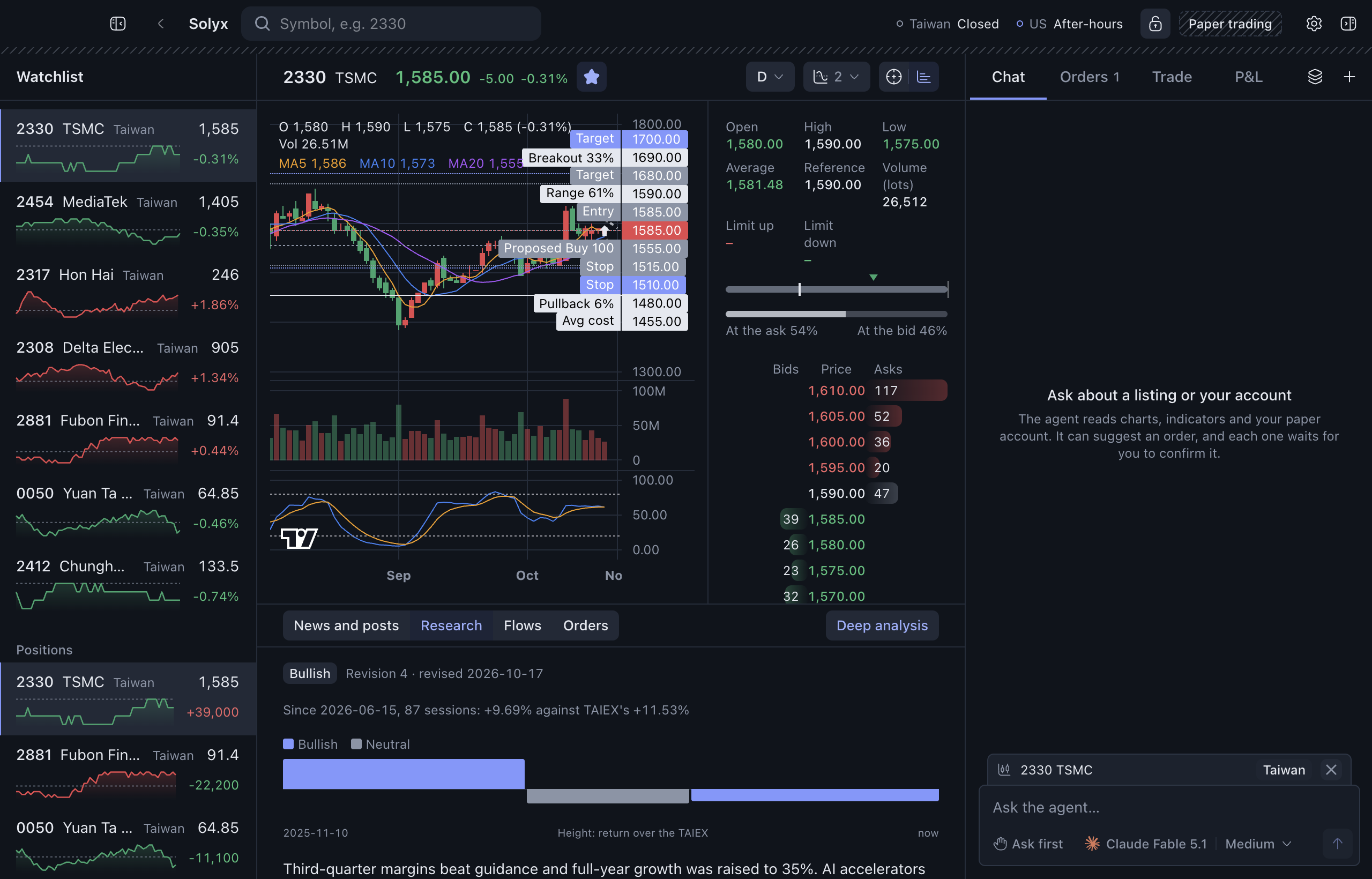
- Palette: one for light and one for dark, from Blueprint, Graphite, Sepia, Iris, Lagoon, Asuka, Rei, Unit-01, Mari, Cyberpunk and Lucy. Copy one to edit its paper, text, lines and accent.
- Price colors: by each market's convention, red for a rise in Taiwan and green in the US, or red up or green up everywhere.
- Language and Time zone.