Extensions
Add playbooks as skills, standing instructions in AGENTS.md, tools from MCP servers, and the shell.
What you write for the agent lives in Solyx's config folder, ~/.solyx, and is read afresh for every run.
Skills
A skill is a playbook the agent reads when it needs it, and you can call it as a / command. Settings → Skills lists yours, the built-in ones and shared ones, with Open skills folder.
Make a folder under ~/.solyx/skills/, named for the skill: lowercase letters, digits and single hyphens, up to 64 characters.
Write its SKILL.md, with the same name and a description of when to use it:
---
name: earnings-week
description: Review a listing ahead of its quarterly report. Use when results are due within a week.
---

1. Read the last eight quarters' revenue, margins and EPS.
2. Compare the consensus the news reports with the trailing figures.
3. …
Call it as /earnings-week in the composer, or let the agent read it when its description fits.
| Frontmatter | Does |
|---|---|
name | Must equal the folder's name |
description | Required, up to 1,024 characters |
user-invocable: false | Hides it from /, so only the agent reads it |
disable-model-invocation: true | Turns it off |
Yours win over a built-in skill of the same name. Skills in ~/.agents/skills, shared with other agents, are offered once you switch each on.
| Skill | For |
|---|---|
order-proposal | Turning an idea into a proposal |
exit-plan | Stops and targets |
technical-read | Reading a chart across timeframes |
backtest | Testing a rule, out of sample, and reporting it |
strategy | Writing a strategy of your own, checked and tested |
portfolio-review | Exposure, concentration and cash |
watchlist-upkeep | A round over the watchlist, ending in a briefing |
deep-analysis | A report and one scored forecast |
fund-research | An ETF's or ETN's holdings, costs and premium |
solyx-guide | Setting up Solyx and fixing what goes wrong |
The agent also reads taiwan-market, us-market and canvas on its own.
Standing instructions
~/.solyx/AGENTS.md holds instructions the agent reads with every message, such as how you size positions or what you never trade. It appears under Settings → Skills → Standing instructions.
MCP servers
~/.solyx/mcp.json connects MCP servers, in the mcpServers format Claude, Cursor and pi use. Open mcp.json under Settings → MCP creates it.
{
  "mcpServers": {
    "notes": {
      "command": "npx",
      "args": ["-y", "@example/notes-mcp"],
      "env": { "NOTES_TOKEN": "secret:NOTES_TOKEN" }
    },
    "docs": {
      "url": "https://mcp.example.com/mcp",
      "headers": { "Authorization": "secret:DOCS_KEY" }
    }
  }
}- A local server takes
command, withargs,envandcwdif it needs them. It gets onlyHOME,LOGNAME,PATH,SHELL,TERMandUSERfrom your environment. - A remote server takes
url, withheadersif it needs them, or signs in from Settings → MCP. secret:NAMEstands for a secret you enter under Settings → MCP, saved with your keys rather than in the file.
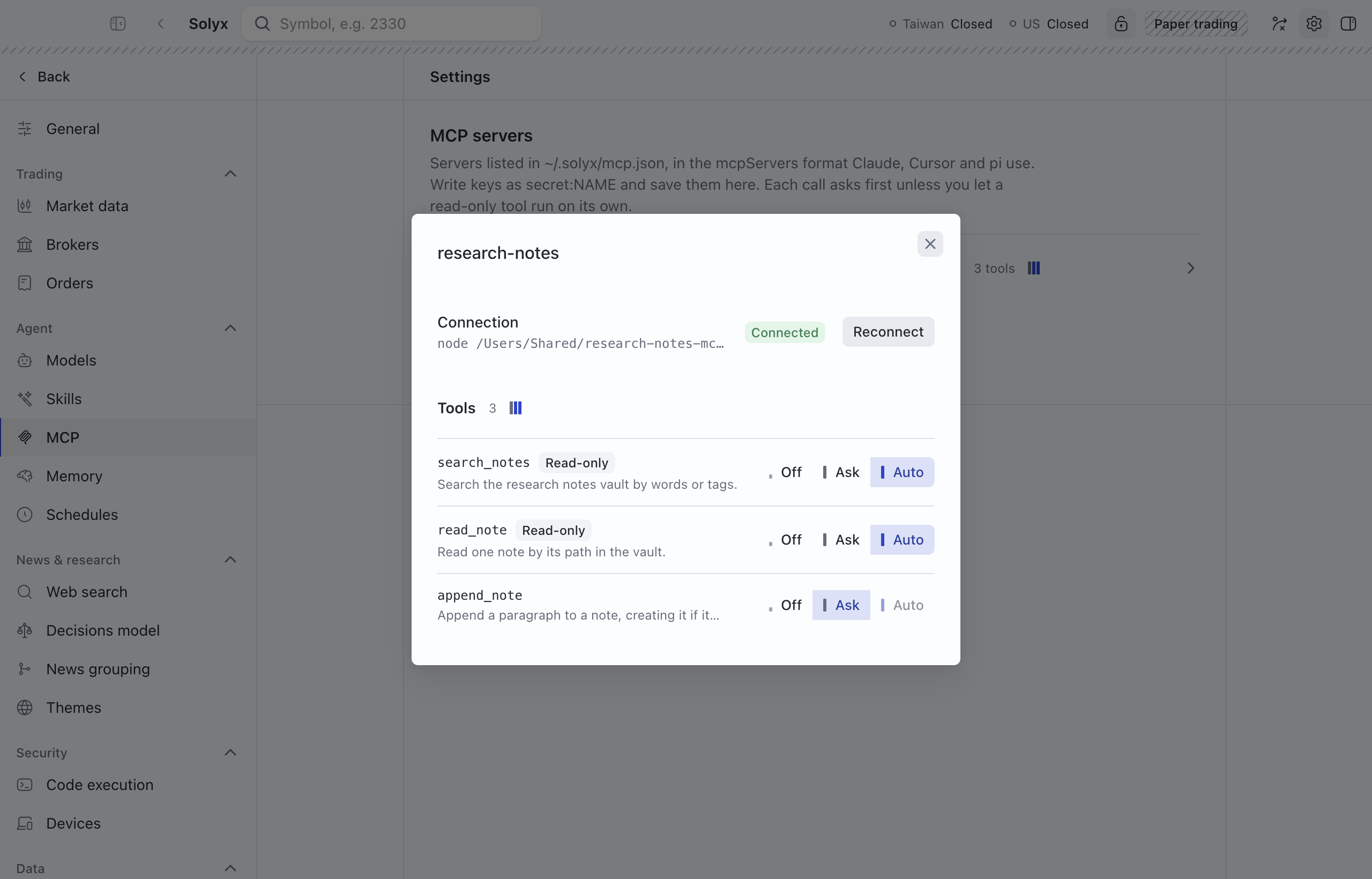
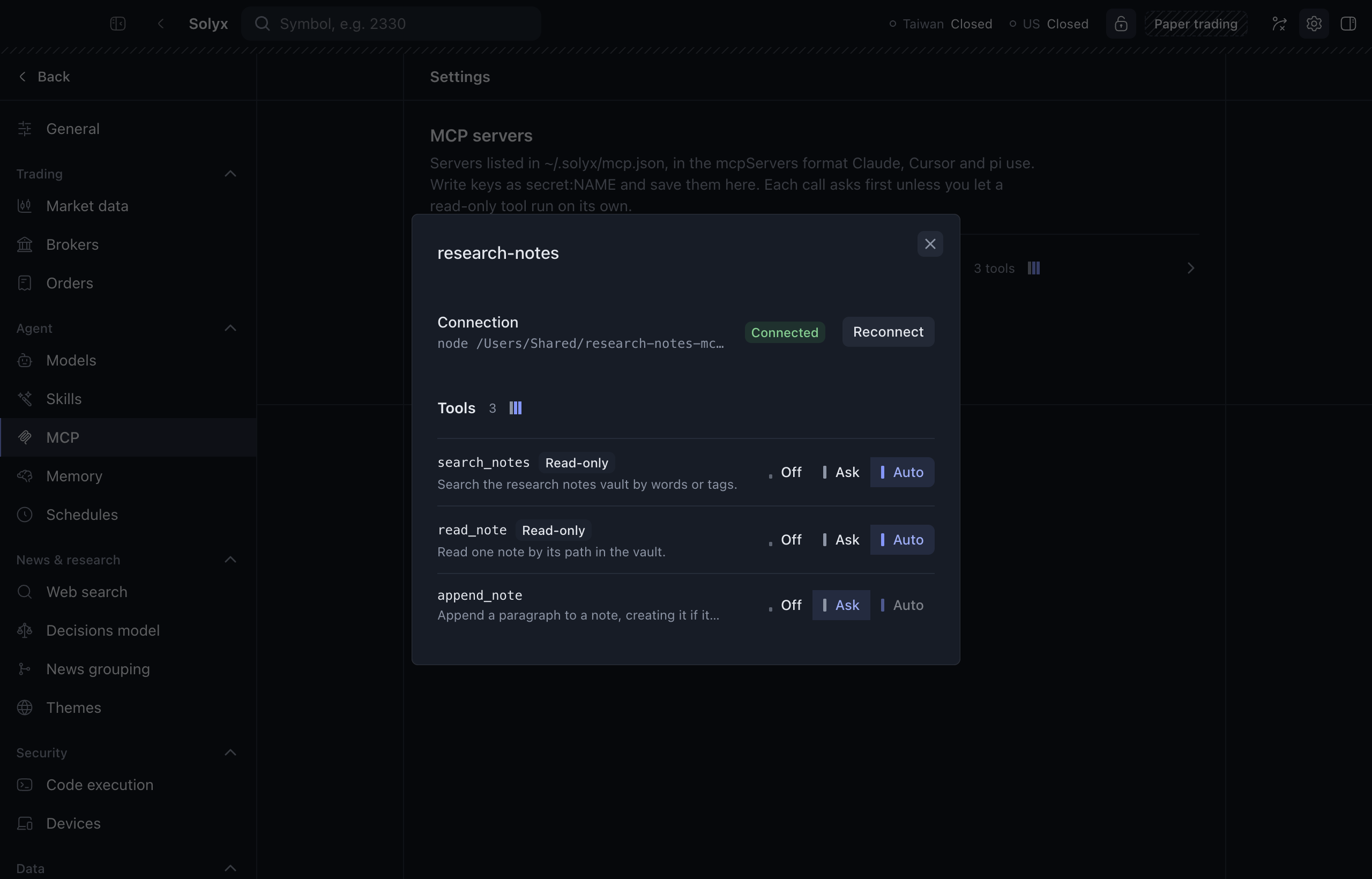
Each tool is Off, Ask or Auto: off, asks each time, or runs on its own. Tools start on Ask, and only those a server marks read-only can be set to Auto. The agent loads servers' tools as it needs them through a tool search, which matches English words.
The shell
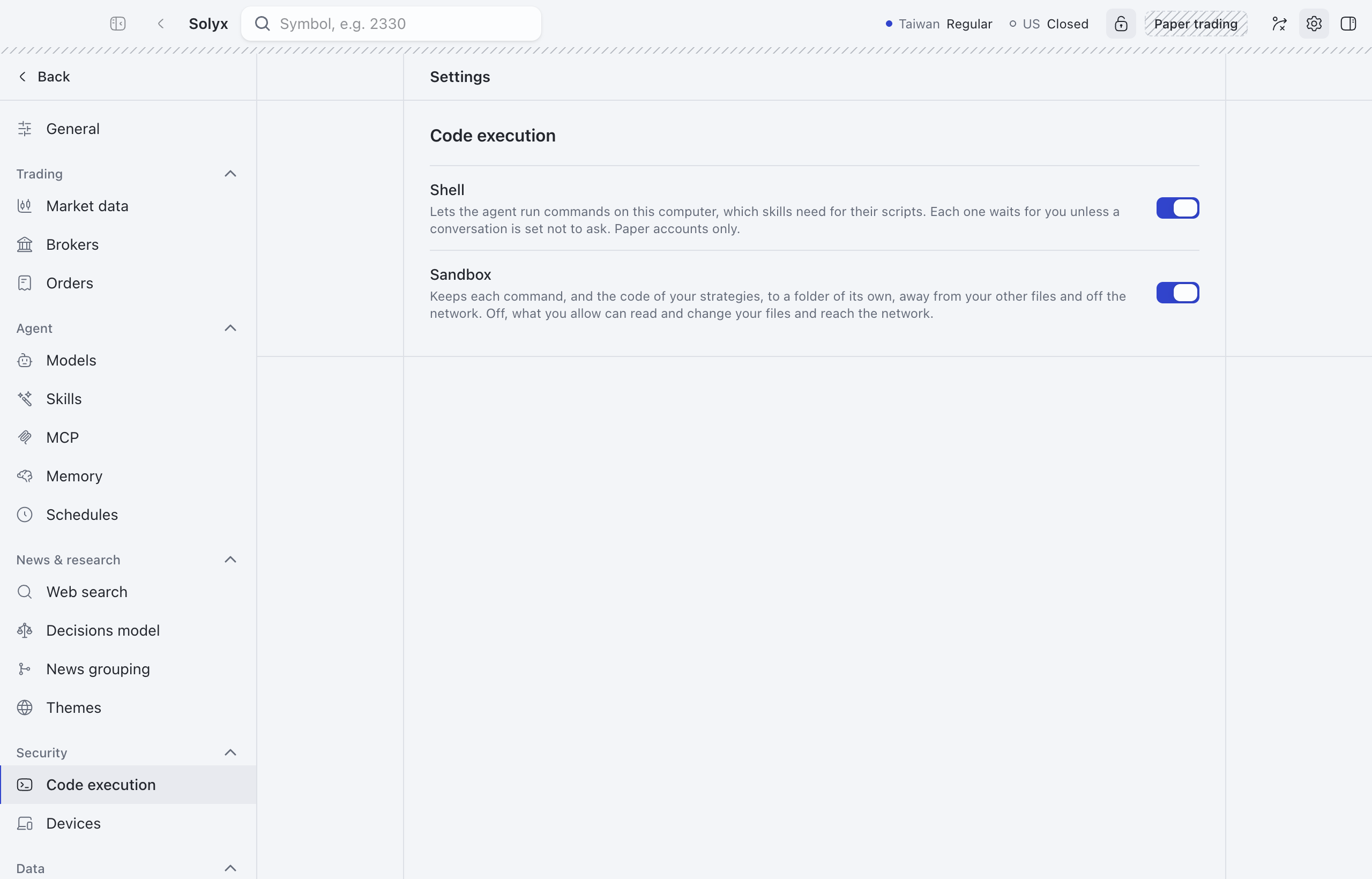
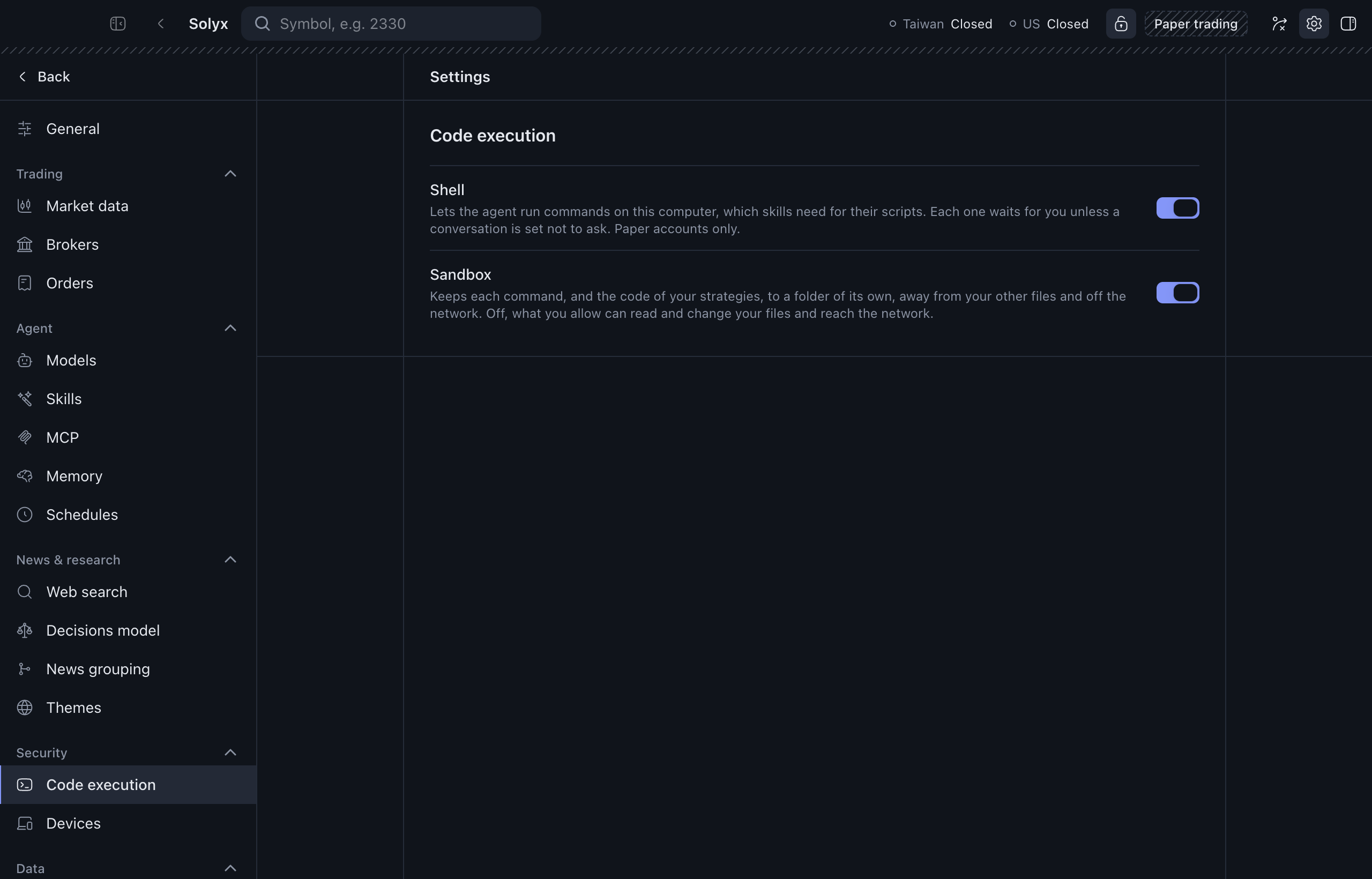
Let the agent use the shell, under Settings → Code execution, lets the agent run commands on your computer, in bash or PowerShell, in a folder of its own for each conversation that goes when the conversation does. It is off by default and offered only while orders go to the paper account. Each command waits for you unless the decisions model judges it harmless in Allow for me, or the conversation is in Don't ask.
Sandbox, below it, runs commands in a sandbox on macOS and Linux, and is on unless you turn it off. A command can change only its conversation's folder, which also holds its settings and temporary files. It can't read the rest of your home folder, Solyx's own data and settings, other apps' temporary files or external drives, except the folders of the skills offered and of the tools on your PATH, and it has no network, not even to your own computer. On Linux the sandbox needs bubblewrap, socat and ripgrep; while one is missing, the setting names it and no command runs until you install it or turn the sandbox off. Windows has no sandbox yet, and neither does a computer where you turned it off: a command then has your access to your files and the network.
The same switch holds your strategies' code, each run to a folder of its own.